How to Start: Getting Your STL Files Ready
Read this before loading your STL Source folder for the first time.
Why this matters
With the release of the Great Hall campaign (Campaign #3), the file naming convention for the entire Diorama Tiles product line was updated - not just for Great Hall itself, but retroactively for every existing set.
The editor is built around this new naming convention. If you load older files that still use
the previous names, the editor will not recognize them - pieces will appear to be missing, even
though the underlying models haven't changed. This is not a bug to fix in the editor - it just
means the files need to be re-downloaded.
This also affects your Print List export: it always lists the current file
names, even if what you actually own on your hard drive is still named the old way. Make sure
you've re-downloaded before printing, so the list matches what you actually have.
What to download
- Go to your MyMiniFactory library and download the current version of your sets from there.
- Already have Great Hall files, or files from an even newer set (e.g. The Withered Crossing)? Those already use the current naming convention - you can test with them directly, no need to re-download.
Recommended workflow
- Create a folder anywhere on your computer, e.g. named
STL-Source. - Copy your MyMiniFactory downloads directly into that folder.
The folder structure inside
STL-Source doesn't matter - the editor searches
through everything it finds, however you've organized it.
Special case: Campaign #1 (Adventure Bundle) and Lava Burst
Alongside the new file names and folder structure, this update also added OpenLOCK as a bonus extra locking option for these two sets.
Because of this, your downloads for Campaign #1 / the Adventure Bundle (the
matching files are in the shop under this name) and Lava Burst each contain a
ZIP file with the exact same name:
NEW_structure_and_OpenLOCK-Option.zip. If you extract both without renaming them
first, the second one will overwrite the first.
How to avoid this
- Extract the Adventure Bundle's
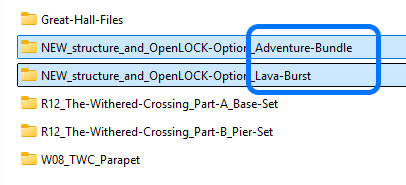
NEW_structure_and_OpenLOCK-Option.zipinto its own folder, and rename that folder to something distinct, e.g.NEW_structure_and_OpenLOCK-Option_Adventure-Bundle. - Do the same for the Lava Burst ZIP, e.g. renaming it to
NEW_structure_and_OpenLOCK-Option_Lava-Burst. - Copy both renamed folders into your
STL-Sourcefolder as usual.
Once your files are ready
Head back to the editor, click Load STL Source in the sidebar, and select your
STL-Source folder. See the
STL Source & File Naming section of the Guide for what
happens next, including the Asset Check report.